



Five Things We Will Learn
- How to set up your EveryDollar account and choose between the free and premium versions.
- The difference between planning your month and tracking your money as you go.
- How to add income, bills, everyday expenses, and debts into your budget.
- How to use “funds” to save for short-term goals like vacations or emergencies.
- How to handle overspending and adjust your budget without losing control.
Why EveryDollar Is a Simple Way to Start Budgeting
If you’re thinking about using EveryDollar for your personal budget, this walkthrough will take you from a blank account to a working monthly plan. The creator of the tutorial is a financial coach who specializes in helping people break the paycheck-to-paycheck cycle so they can finally find some peace of mind with their money.
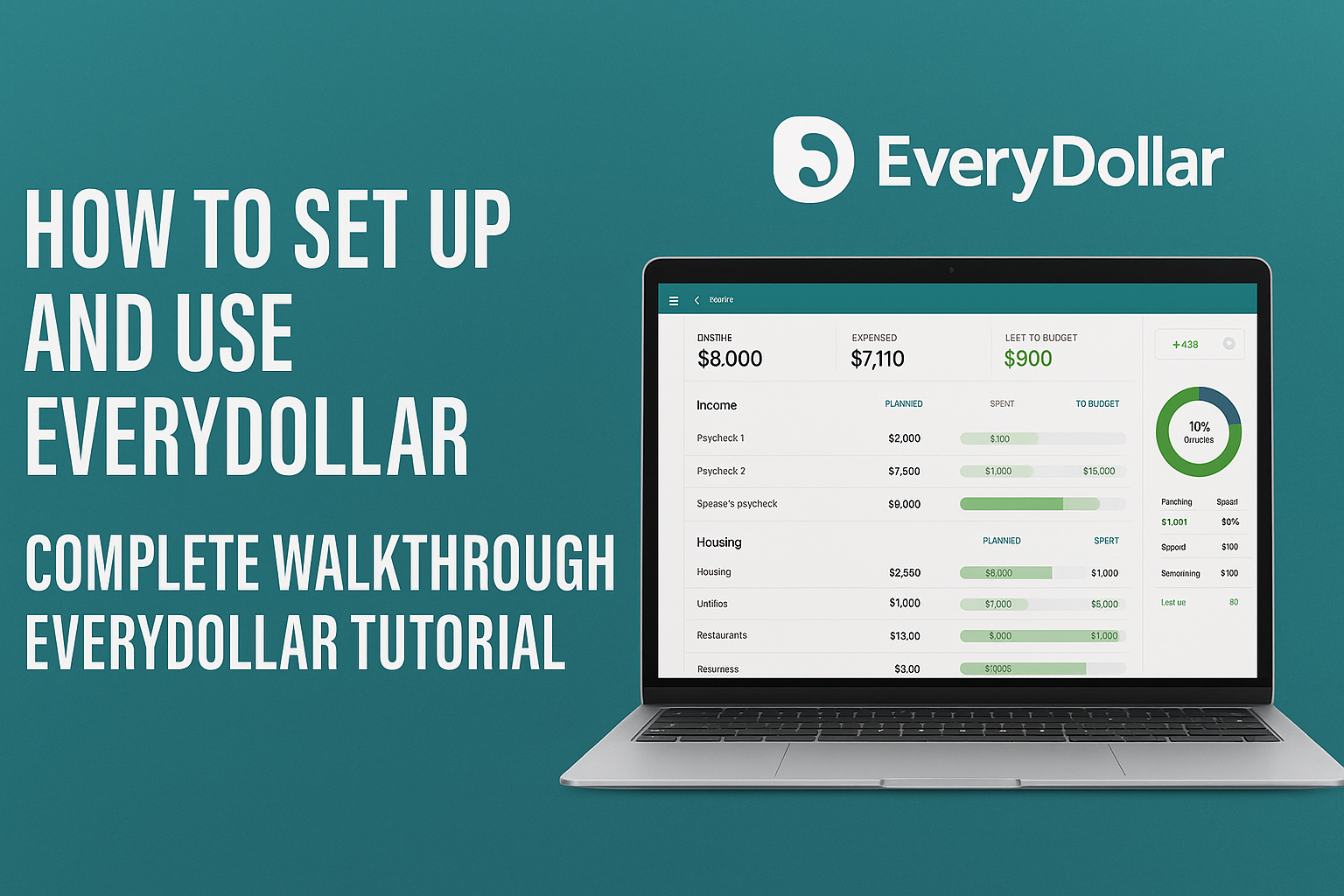
EveryDollar shines because it keeps budgeting simple: one screen, one plan, and a very clear framework—“give every dollar an assignment.” You can do everything you need with the free version, and, if you choose, upgrade to premium mainly for automatic bank connections and spending reports.
Let’s walk through the whole process step by step.
Getting Started: Signing Up and Laying the Groundwork
Once you’ve created your EveryDollar account and username, you’ll see a few optional “get to know you” questions. You can skip these, but they’re actually helpful because they force you to pause and ask:
- Why am I budgeting?
- What’s my real goal—breaking the paycheck-to-paycheck cycle, paying off debt, saving, changing my lifestyle?
- What’s my situation—kids, pets, house, cars, etc.?
Answering these up front gives you a sense of purpose before you ever type a number into a category.
- EveryDollar Free – you do all the transaction entry manually.
- EveryDollar Premium – your bank sends transactions into the app, and you get reports and “Trends” (like average restaurant spending over six months).
The main reason people choose Premium is bank connectivity, not because you can’t budget effectively with the free version. You absolutely can.
Step 1: Enter Your Income
Next, you’ll add your income sources. This is the foundation of your plan.
Add every way money comes into your household:
- Salary paychecks (weekly, biweekly, twice a month, or monthly)
- A spouse’s income
- Side hustles or freelance work
For example, you might enter:
- Paycheck 1 – $2,500
- Paycheck 2 – $2,500
- Spouse’s monthly paycheck – $3,000
All together, that gives you $8,000 of planned income for the month. EveryDollar keeps a running total at the top so you always know how much you’re working with.
Step 2: Add Core Bills and Everyday Spending
EveryDollar auto-creates common budget categories for you:
- Housing (rent/mortgage, water, electricity, etc.)
- Utilities
- Groceries
- Restaurants
- Transportation
- Insurance
- Misc. lifestyle items
You can type in your real numbers—say:
- Rent: $2,500
- Water: $150
- Electricity: $200
As you add amounts, the app shows:
- Planned income (what you expect to make)
- Planned spending so far (what you’ve assigned to categories)
- Money “left to budget” (what still needs a job)
You can also add custom items like:
- Kids’ sports – $100/month
- Gifts – whatever you want to set
Don’t worry about making it perfect; you’ll refine it as you go.
Step 3: Planning vs. Tracking – The Two Sides of Your Budget
EveryDollar splits your month into two key pieces:
- Planning (left column) – what you decide before the month begins.
- Tracking (right column) – what actually happens as money comes and goes.
The Plan (Left Column)
Let’s say you’re planning for October on September 30. You haven’t been paid yet, but you say:
- “In October, we plan to earn $8,000.”
- “We plan to assign all $8,000 to specific categories.”
When every dollar has a job, your top bar shows an “EveryDollar budget”—no money left unassigned.
The Tracking (Right Side)
As the month goes on, you log what actually happens:
- When Paycheck 1 hits, you click that income category, hit the plus sign, and add the $2,500 you received.
- The planned income ($8,000) doesn’t change. That stays as your plan.
- The received total on the right goes up to $2,500, then $5,000, etc.
This separation helps you see:
- What you intended to do.
- What you actually did.
You can also toggle each category to show either Spent or Remaining, and watch green progress bars fill as you spend.
Step 4: Logging Expenses (Manual and Bank-Connected)
When you spend money, you should log it as soon as possible—either:
- At the checkout line, or
- Before you pull out of the parking lot.
In the free version you:
- Tap the category (e.g., “Groceries”).
- Hit the plus sign.
- Enter the amount (e.g., $250) and confirm it as an expense.
Now your groceries category shows:
- Planned: $1,000
- Spent: $250
- Remaining: $750
Every grocery trip will show up in a list inside that category, so you can see where the money went.
In the premium version:
- Your bank sends transactions into EveryDollar.
- You go to the Transactions tab and drag each one into a category (e.g., a $50 restaurant charge goes into “Restaurants”).
It’s not like some apps that automatically guess categories and hide the process. You still stay engaged, which is actually good for your money habits. You see spending in real time and can course-correct mid-month rather than being surprised at the end.
Step 5: Add Debts and Build a Payoff Plan
Debts don’t show up in the initial setup questions every time, but you can easily add them inside your budget:
- Go to the “Debts” section.
- Add each debt (credit cards, car loans, student loans, medical debts, personal loans, etc.).
- For each one, enter:
- Starting balance
- Minimum payment
- Any helpful notes (interest rate, promo expiration, etc.)
Example for a credit card:
- Name: Visa Card
- Balance: $5,000
- Minimum payment: $50
- Note: “0% interest until 5/20/24”
Then you budget for the minimums and any extra you want to throw at debt.
In the example setup, minimums across all debts totaled $700/month, which the coach calls the “magic number”—that’s the cash flow you’ll free up once those debts are gone.
If you had $835 left over in your plan, you might:
- Put all $885 ($50 minimum + $835 extra) on your smallest debt (Visa).
That’s how you intentionally accelerate debt payoff instead of just letting it drag on.
Step 6: Use “Funds” for Short-Term Savings Goals
EveryDollar has a special feature called funds for short-term savings.
A fund is like a small bucket for a specific goal:
- Vacation
- Car repairs
- Christmas
- Medical savings
- Emergency fund
When you turn a category into a fund, you can:
- Set a target amount (e.g., $2,000 for vacation).
- See a carryover balance month to month.
- Watch your total grow over time.
Example: Vacation fund
- Create a category “Vacation” under Savings.
- Click it and flip the switch to make it a fund.
- Set:
- Starting balance: $0
- Target: $2,000
If you plan $100/month into that fund:
- Month 1:
- Plan $100
- Fund balance becomes $100
- Month 2:
- Another $100 planned
- Fund balance becomes $200 (previous + new)
If you spend $50 on a rental car deposit out of that fund in Month 2:
- The fund balance adjusts, and future months carry over what’s left.
Important:
- When you plan money into a fund, EveryDollar treats that like moving it from checking to savings. You usually don’t add a separate expense transaction for that same amount, or you’ll double-count it.
Step 7: Handling Overspending Without Losing Control
Overspending happens—but EveryDollar helps you see and fix it in real time.
Say you:
- Budget $200 for electricity.
- The bill comes in at $215.
You’ll see a red -$15 in that category. You have two main options:
- Update the plan and move money.
- Change the planned amount to $215 so it’s no longer red.
- Then find $15 somewhere else, like:
- Clothing from $100 → $85, or
- Fun and entertainment from $100 → $85.
This keeps your overall plan balanced while reflecting reality.
- Leave the plan as-is and mentally track the red.
- Keep it at $200 and accept that you’re over by $15.
- Just remember that $15 has to be “found” somewhere else and not spent.
The coach strongly recommends engaging the budget proactively—changing the plan to match what you choose to do and then intentionally moving dollars from one category to another.
This is where budgeting becomes powerful. Instead of money “happening to you,” you’re deciding what does and doesn’t get funded.
Step 8: Rolling Your Budget Forward Each Month
One of EveryDollar’s biggest time savers:
- When you create next month’s budget, it copies the current one.
You don’t start from scratch; you tweak. For example:
- Realize groceries at $1,000 weren’t enough? Bump them to $1,200.
- Know your electricity will be higher in winter? Adjust accordingly.
- Thanksgiving or holidays coming? Add or increase a “Holidays/Thanksgiving” line.
- Need to pause a big debt snowball for a month to cover seasonal costs? Decrease extra payments accordingly.
Over time, your budget becomes more accurate as it reflects your real life, not your idealized guesses.
Premium Features and When to Consider Upgrading
The walkthrough focused on the free version, but premium adds:
- Bank connectivity (transactions flow in automatically).
- Features like paycheck planning and more advanced reporting/Trends.
- The ability to see long-term patterns—like how much you actually spend on restaurants month after month.
If you’re on the fence, there’s a 14-day free trial, and there are separate deep-dive tutorials available specifically on premium features and the differences between free and paid.
When You Need Extra Help: Personal Finance Coaching
If this still feels overwhelming—or if you’ve tried budgeting before and it never stuck—you don’t have to figure it out alone.
The coach behind this walkthrough offers personal finance coaching from people who:
- Know EveryDollar inside and out.
- Understand how to build habits that last.
- Help you clarify your financial goals and hit them faster.
There’s a free consultation link (mentioned in the original video) where you can get pointed in the right direction and decide if one-on-one help is what you need.
Final Encouragement
EveryDollar isn’t about spreadsheets and stress. It’s about:
- Breaking the paycheck-to-paycheck cycle.
- Giving every dollar a clear assignment.
- Seeing your goals—debt freedom, savings, breathing room—become real month by month.
Start with one month, stay engaged, and keep adjusting. Over time, the budget stops feeling like a restriction and starts feeling like a plan for peace of mind.

Begin Your Journey Today
Jesus didn’t just call us to believe in Him—He called us to follow Him.
Step into the life He designed for you through Emmaus Road’s The Commands of Jesus . This is more than learning—it’s an invitation to walk with Him, obey Him, and experience Him in a real and powerful way.
You don’t want to miss this exciting adventure Jesus has called you into.
Start now:
https://GregLancaster.org/StartHere